The Ultimate Guide to the Google Ads Transparency Center (2026)
Okay. I have to tell you about one of my favorite free marketing tools. (This one is seriously mind blowing!)
Google lets you see any businesses’ ads that are currently running – through its Ads Transparency tool.
Anyone can look them up. No login, no ad account, no cost. It comes into play because people are always curious about “why does so and so have so much business and I am struggling?” – let’s see why…
Usually, they have a robust ads program running.
So what is this tool and how do you use it?
It’s called the Google Ads Transparency Center, and you can find it at adstransparency.google.com. I pull it up in almost every client consultation, and it’s usually the moment the conversation gets fun. So I wrote the guide I wish existed: where it came from, what it shows, what it doesn’t, and exactly how to use it so you can stop guessing and start making smarter marketing decisions.
TL/DR
- The Google Ads Transparency Center is a free, public database of ads from advertisers on Google Search, Display, Gmail, and YouTube.
- Search any business by name or website, filter by date and location, and see the actual ads they’ve run.
- You can’t see what they spent, their keywords, or how their ads performed.
- It’s the best free way to see what your competitors are doing before you spend a single dollar on ads.
- If you advertise on Google, your name, location, and payer are public too. Go check your own listing.
Table of contents
- What the Google Ads Transparency Center is
- How it came about: a short history
- What you can see (and what you can’t)
- How to use it, step by step
- Smart ways small businesses can use it
- If you advertise on Google: your public profile
- Limits and myths
- Google Ads Transparency Center vs. Meta Ad Library
- FAQ
- How we use it at Faceted Media
What the Google Ads Transparency Center is
The Ads Transparency Center is Google’s public record of who is advertising and what they’re showing people. Google describes it as a searchable repository of advertisers and the ads they’ve served on platforms like Search, Display, Gmail, and YouTube (Google Ads policy help).
Think of it as a peek behind the curtain of Google’s ad world. Every advertiser listing shows:
- Who the advertiser is: the name Google verified, plus a verified badge if they completed Google’s advertiser verification
- Where they’re based: the location tied to that verification
- Who paid: the payer name, when it’s different from the advertiser
- Their ads: the actual creative, the format, and when and where each ad ran
It’s free. It doesn’t require a Google Ads account. And it’s the same information Google shows when you tap the three dots next to an ad and choose “About this advertiser.”
Why it exists: Google built it so regular people could check who’s behind an ad before trusting it, clicking it, or handing over a credit card. Marketers (hi!) figured out pretty quickly that it’s also the best free competitive research tool Google offers.
How it came about: a short history
This tool didn’t just appear one day. It grew out of years of pressure on Google to prove the ads on its platforms come from real, accountable businesses. It started with elections, expanded to every advertiser, and it keeps adding layers.
| When | What happened |
|---|---|
| 2018 | Google starts requiring identity verification for election advertisers |
| 2020 | Google expands advertiser identity verification to advertisers worldwide |
| Fall 2022 | My Ad Center launches globally, letting people see why they get certain ads and control them |
| March 29, 2023 | Google launches the Ads Transparency Center, “a searchable hub of all ads served from verified advertisers” (Google announcement) |
| July 2023 | A new Ads Transparency policy spells out what advertiser information Google makes public (Google policy) |
| May to June 2025 | Google starts showing the payer name when the payer differs from the verified advertiser, then lets advertisers edit it (Google policy update) |
| October 2025 | A dedicated political ads section is added to the Transparency Center (PPC Land) |
| July 9, 2026 | Google adds a “How this ad was made” panel to My Ad Center to flag ads created or edited with AI (Google announcement) |
When Google launched it, Ads Safety product director Alejandro Borgia said more than 30 million people were already using Google’s ad transparency and control menus every day. The Transparency Center gave all of that one searchable home.
Here’s what I want you to take from all this: Google only moves in one direction. Every update adds more public information about advertisers, never less. If you run Google Ads, assume people can see who you are, where you are, and who pays your bill.
What you can see (and what you can’t)
The Transparency Center shows you the ads and who ran them. It does not show you how those ads performed. Please hold onto that… it will save you from a lot of bad conclusions (and a lot of wasted ad spend).
| You CAN see | You CAN’T see |
|---|---|
| The advertiser’s verified name and location | How much they spend |
| A verified badge (or not) | Their keywords, bids, or match types |
| The payer name, if it differs from the advertiser | Clicks, click-through rate, conversions, or cost per lead |
| The actual ad creative: text, image, and video | Their full audience targeting (outside a few regions) |
| Ad format and the dates an ad ran | Which ad is their best performer |
| Which regions an ad was shown in | Their landing page as it looked at the time |
A few nuances worth knowing:
- Search ads show as served. For responsive search ads, you see versions people actually saw, not the full list of headlines and descriptions in the account (Relevant Audience guide).
- Europe gets more. For ads in certain regions, mainly the EU, Google also shows targeting information, the total number of recipients, and the ad’s subject matter, and makes that data available through a public API (Google policy). In the US, expect the basics.
- Political ads play by different rules. Election ads in covered locations carry extra disclosures and live in Google’s political advertising section.
How to use it, step by step
Good news: you can go from zero to peeking at a competitor’s ads in about a minute. Let’s walk through it together.
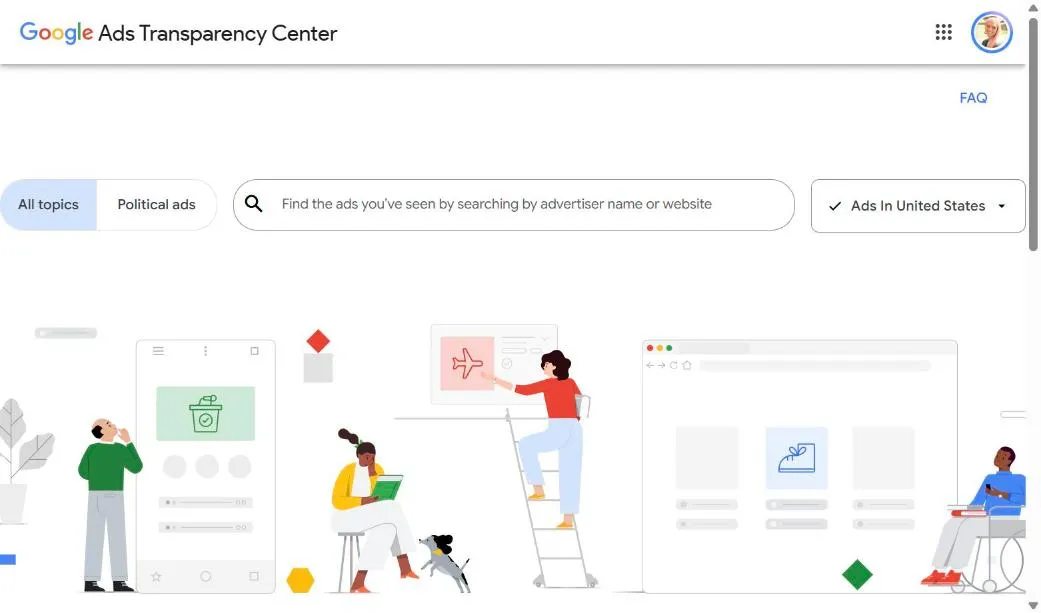
Step 1: Open the Transparency Center
Go to adstransparency.google.com. You don’t need to sign in. Adding ?region=US to the URL starts you on US results.
Step 2: Search by advertiser name or website
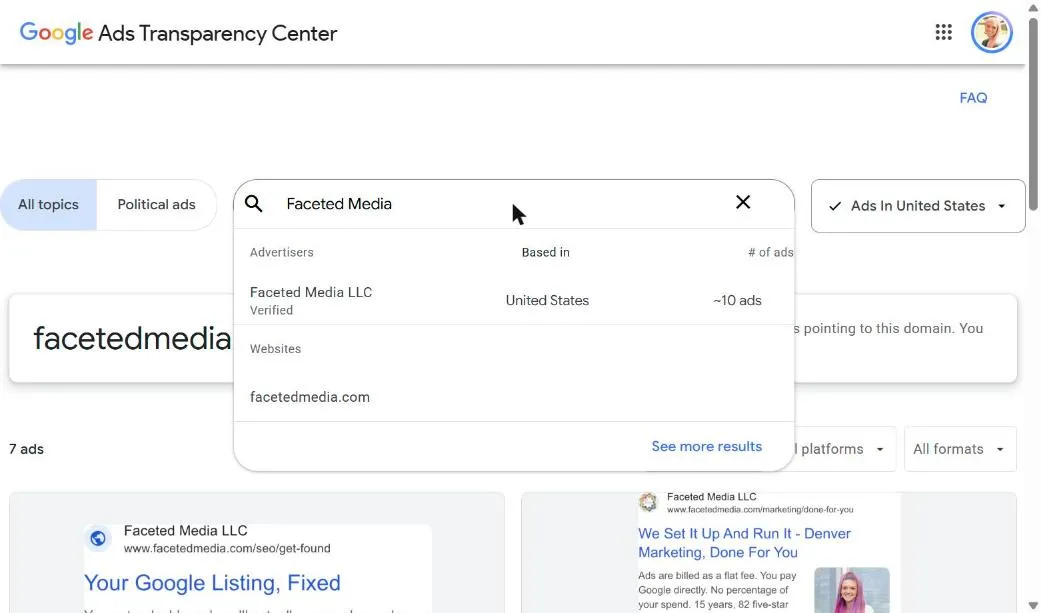
Type a business name or a website domain into the search bar. Google will suggest matching advertisers as you type.
Two tips that save a lot of frustration:
- Search the domain if the name is common. A search for a short or generic name can return several unrelated businesses. The website domain narrows it down fast.
- Domain endings show up separately. A .com, .co.uk, and .ca version of the same brand can each appear as their own result (WordStream).
Step 3: Check the advertiser profile
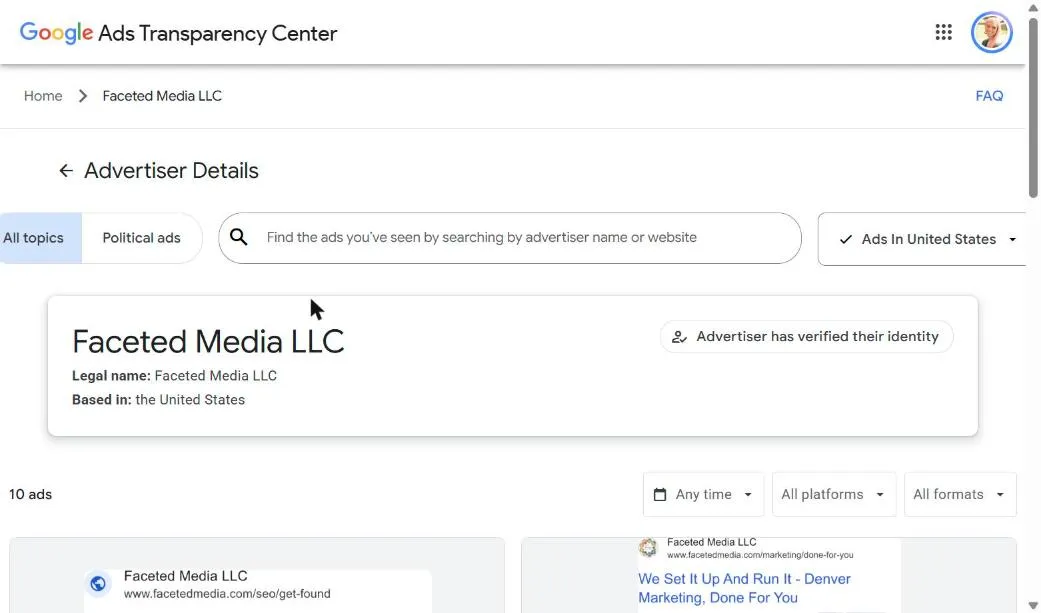
Click into the advertiser. At the top you’ll see their verified name, their location, and a verified badge if they’ve completed verification. Look closely here: one brand can run ads under several advertiser accounts, especially if they use an agency or a reseller. Check each one.
Step 4: Filter the results
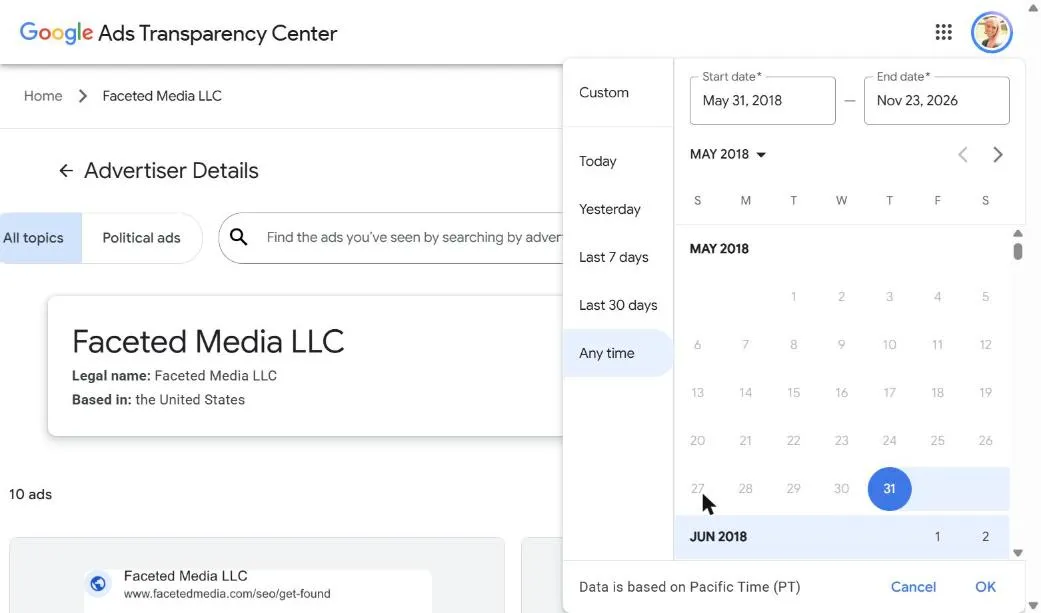
Use the filters at the top of the results to narrow things down. Depending on Google’s current interface, you’ll typically see:
- Date range: a short window shows what’s running now; a longer one shows how their messaging has changed
- Location: where the ad was shown, which is not always where the business is based
- Format: text, image, or video
- Platform: such as Search, YouTube, or Display, where available
- Topic: all ads vs. political ads
Google changes this interface from time to time, so go by what’s on your screen.
Step 5: Open individual ads
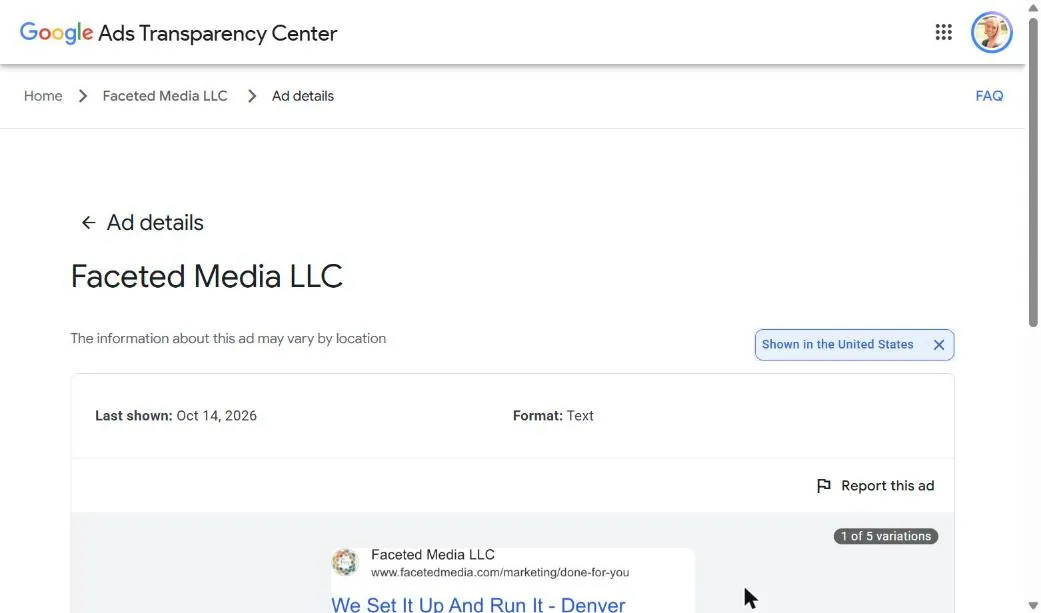
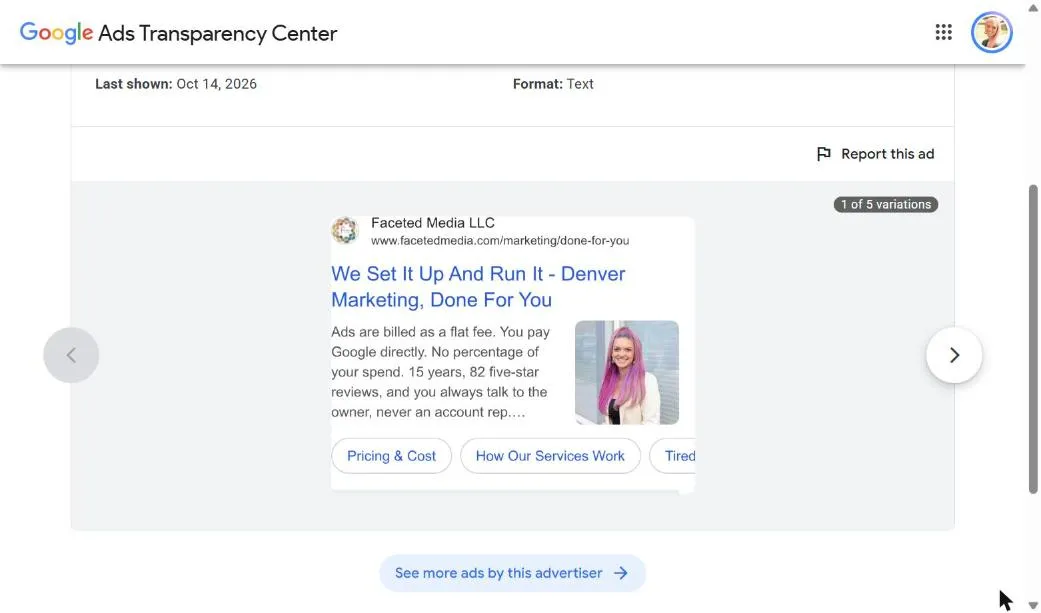
Click any ad to see it full size, along with its format, when it was last shown, and the regions it ran in. This is where the good stuff is: the headline, the offer, the call to action, the visuals.
Step 6: Look for patterns, not single ads
One ad tells you almost nothing. Twenty ads tell you a story. Scroll through and notice what keeps repeating: the offer they lead with, the words they use, whether they’re mostly on YouTube or mostly on Search, and whether a particular ad has been running for months.
Bonus: Start from an ad you see in the wild
See an ad on Google or YouTube? Tap the three dots or the info icon next to it and choose About this advertiser. From there you can jump to that advertiser’s page in the Transparency Center and see their other ads (Google My Ad Center help).
Smart ways small businesses can use it
If you take one thing from this guide, let it be this: answer one question before you spend a dollar on ads. What is everyone else in my market already doing? Here’s how I’d use the Transparency Center if I were sitting in your chair.
- Find out if your competitors advertise at all. Search your top three to five competitors. If none of them run Google Ads in your area, that’s an opening. If all of them do, you know what you’re walking into.
- Study their offers. Free consultation? Same-day appointments? A dollar amount off? The offer they keep repeating is usually the one that works for them.
- Borrow the language your customers respond to. Notice the words and pain points that show up across ads in your industry. That’s market research you didn’t have to pay for.
- Spot the ads that keep running. An ad that’s been live for months probably isn’t losing money. It’s not proof, but it’s a strong hint.
- See where they show up. Mostly Search? Lots of YouTube? This tells you which channels your competitors think are worth the money.
- Check the location filter. A competitor might run totally different ads in Denver than in Colorado Springs. Set the location to your actual service area. (Showing up locally matters for organic results too, see how to get into the Google Maps 3-Pack.)
- Vet a business before you buy. Getting ads from a company you’ve never heard of? Check whether they’re verified, where they’re located, and how long they’ve been advertising.
- Catch impersonators. Search your own business name and website. If someone else is running ads pretending to be you, you’ll see it here, and you can report the ad right from the Transparency Center.
- Get ideas for a new campaign. Before you write ad copy, look at the best national brands in your category for creative inspiration. Then make it yours.
And one gentle reminder, because I’m a Business Therapy girl at heart: slow down. Treat what you find as ideas to test, not answers to copy. Your own conversion data always gets the final word.
If you advertise on Google: your public profile
Here’s the part nobody tells you. If you run Google Ads, you are in the Transparency Center too. Your customers can look you up. So can your competitors. (Hi, competitors!)
So let’s make sure what they see is right.
Advertiser verification
Google has said all advertisers will eventually be required to complete advertiser verification (Google). Once you’re verified, your legal or trademark name and your location show up with a verified badge. If you’re not verified, Google pulls your name from your payment profile instead.
Verification is a trust signal. A verified badge next to your business name tells people you’re real. I always recommend getting it done.
The payer name
Since 2025, Google shows a payer name when the entity paying for the ads is different from the verified advertiser. For verified agency accounts, that can be the client’s payment profile name (Google). Advertisers can edit the displayed payer name in their Google Ads account, under the advertiser verification settings. Google has moved this menu around more than once, so if you can’t find it, search your account settings for “verification.”
Why this matters: if your payment profile is under your personal name, an old LLC, or your bookkeeper’s company, that’s what the public may see. Not great.
Your 3-minute self-check
- ☐ Search your own business name and website in the Transparency Center
- ☐ Confirm the advertiser name matches the brand your customers know
- ☐ Confirm the location is correct
- ☐ Check the payer name (and fix it if it’s wrong)
- ☐ Look for any ads you don’t recognize, or anyone pretending to be you
- ☐ Scroll your own ads with fresh eyes. Would you click them?
One more thing to know: Google’s policy says it may also make other account details public over time, such as an advertiser’s name change history (Google). Assume transparency only grows from here.
Limits and myths
I love this tool. I also love telling the truth about it. Here’s where people go wrong.
Myth: “They have tons of ads, so they must be spending a fortune.” Nope. Lots of ad variations can just mean they’re testing, or that Google is mixing and matching their headlines. Volume of ads is not volume of spend.
Myth: “This ad has run forever, so it must be a winner.” Maybe! A long-running ad is a good hint. But it could also be an ad nobody has looked at in a year. (I’ve seen plenty of those in audits.)
Myth: “I’ll just copy what my competitor is doing.” Please don’t. You have no idea if their ads are working, what their landing page converts at, or whether they’re losing money every month. (Here’s why so many Google Ads campaigns quietly lose money.) Use what you find as inspiration, then build something that sounds like you.
Myth: “If a business isn’t in there, they don’t advertise.” Not necessarily. They might be advertising under a different legal name, a parent company, or an agency account. Try the website domain, and try any other names they go by.
Limit: no performance data. No spend, no clicks, no conversions, no keywords. For keyword and bid research, you’ll still need tools like Google’s Keyword Planner, plus a solid keyword research process.
Limit: the interface changes. Google updates filters and layout from time to time. If something in this guide looks different on your screen, go with what Google is showing you.
Google Ads Transparency Center vs. Meta Ad Library
If you’ve used Meta’s Ad Library to look at Facebook and Instagram ads, the Transparency Center will feel familiar. They’re cousins, not twins.
| Google Ads Transparency Center | Meta Ad Library | |
|---|---|---|
| Where the ads ran | Google Search, Display, Gmail, YouTube | Facebook, Instagram, and Meta’s other apps |
| How you search | By advertiser name or website | By advertiser, plus keywords inside ads |
| Spend shown? | No, except political ads | No, except political and social issue ads |
| Extra detail for political ads | Yes | Yes |
| Cost and login | Free, no login | Free, no login |
My take: Use Google’s tool when you want to research a specific competitor. Use Meta’s when you want to research a topic or message across lots of advertisers. Better yet, use both. Your customers are scrolling Instagram and searching Google in the same afternoon.
FAQ
Is the Google Ads Transparency Center free?
Yes. It’s free and public, and you don’t need a Google account or a Google Ads account to use it.
What’s the URL?
adstransparency.google.com. You’ll sometimes hear people call it the “Google Ads Library.” Same thing.
Can I see how much a competitor spends on Google Ads?
No. Spend is only shown for certain political ads. For everyone else, budgets and bids stay private.
Can I see a competitor’s keywords?
No. You’ll see the ads themselves, not the keywords that triggered them.
Which Google platforms does it cover?
Google lists Search, Display, Gmail, and YouTube.
Will a competitor know I looked at their ads?
No. Searching the Transparency Center is anonymous to advertisers. You’re not clicking their ads, so it doesn’t cost them anything either.
Why can’t I find a business I know advertises?
Try their website domain instead of their name, and try any legal or parent company names. Also check your date range and location filters.
Can I report a scam or fake ad?
Yes. You can report ads you believe break Google’s policies right from the Transparency Center (Google).
Does running Google Ads make my business info public?
Yes. Your advertiser name, location, ads, and in some cases your payer name are public. That’s why the self-check above matters.
How we use it at Faceted Media
When a new client comes to me, the Transparency Center is part of how I size up their market. Before I recommend a single ad dollar, I want to know:
- Are their competitors advertising on Google at all?
- What offers and messages are those competitors leaning on?
- Where are the gaps nobody is covering?
- Is the client’s own advertiser listing accurate, verified, and trustworthy?
That last one surprises people. Sometimes the most valuable thing I find isn’t about a competitor. It’s that the client’s own listing shows an old business name, the wrong location, or a payer name they never meant to make public.
This is the slow, thoughtful part of marketing that I believe in. Look first. Understand your market. Then spend. It’s less exciting than hitting “launch” on a campaign, but it’s how you stop wasting money.
Want me to look at your market for you? I’ll check your competitors’ ads, review your own advertiser listing, and tell you honestly whether Google Ads makes sense for your business right now. Book a Google Ads consultation with Faceted Media.
Kimberly Hogate is the founder of Faceted Media, a digital marketing agency she’s run since 2011, and the author of Business Therapy: The Anxious Entrepreneur’s Quick Guide to Success. She’s been featured in Forbes Advisor and was invited to join Google’s Ads Research Panel.
Sources
- Announcing the launch of the new Ads Transparency Center, Google, March 29, 2023
- Ads transparency, Google Advertising Policies Help
- Ads Transparency policy, Google Advertising Policies Help
- Updates to Ads Transparency Policy (April 2025), Google
- Advertiser verification, Google
- Update to Advertiser identity verification policy, Google
- Learn more about advertisers (My Ad Center), Google
- Expanding AI transparency in ads, Google, July 9, 2026
- Google adds political ads to Transparency Center, PPC Land
- Google Ads Transparency Center: What It Shows and How to Use It, Relevant Audience, October 27, 2026
- How to use the Google Ads library, WordStream